Edit tags in the tag panel
The tag panel shows editable fields for the selected files. Use it to set shared album information while keeping each track's own title and number. Edits are pending until saved, unless an enabled selection-change save preference writes them when moving on.
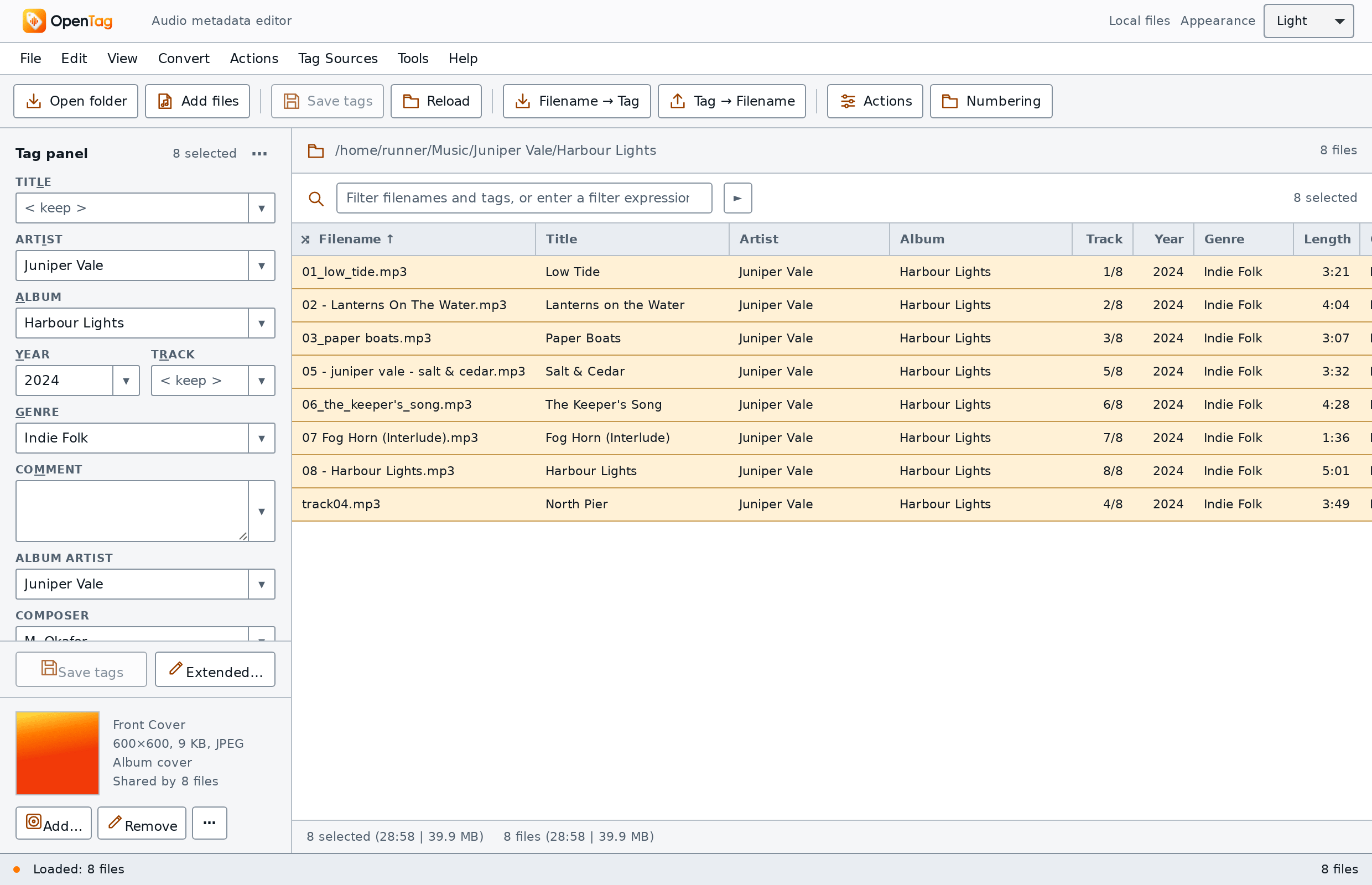
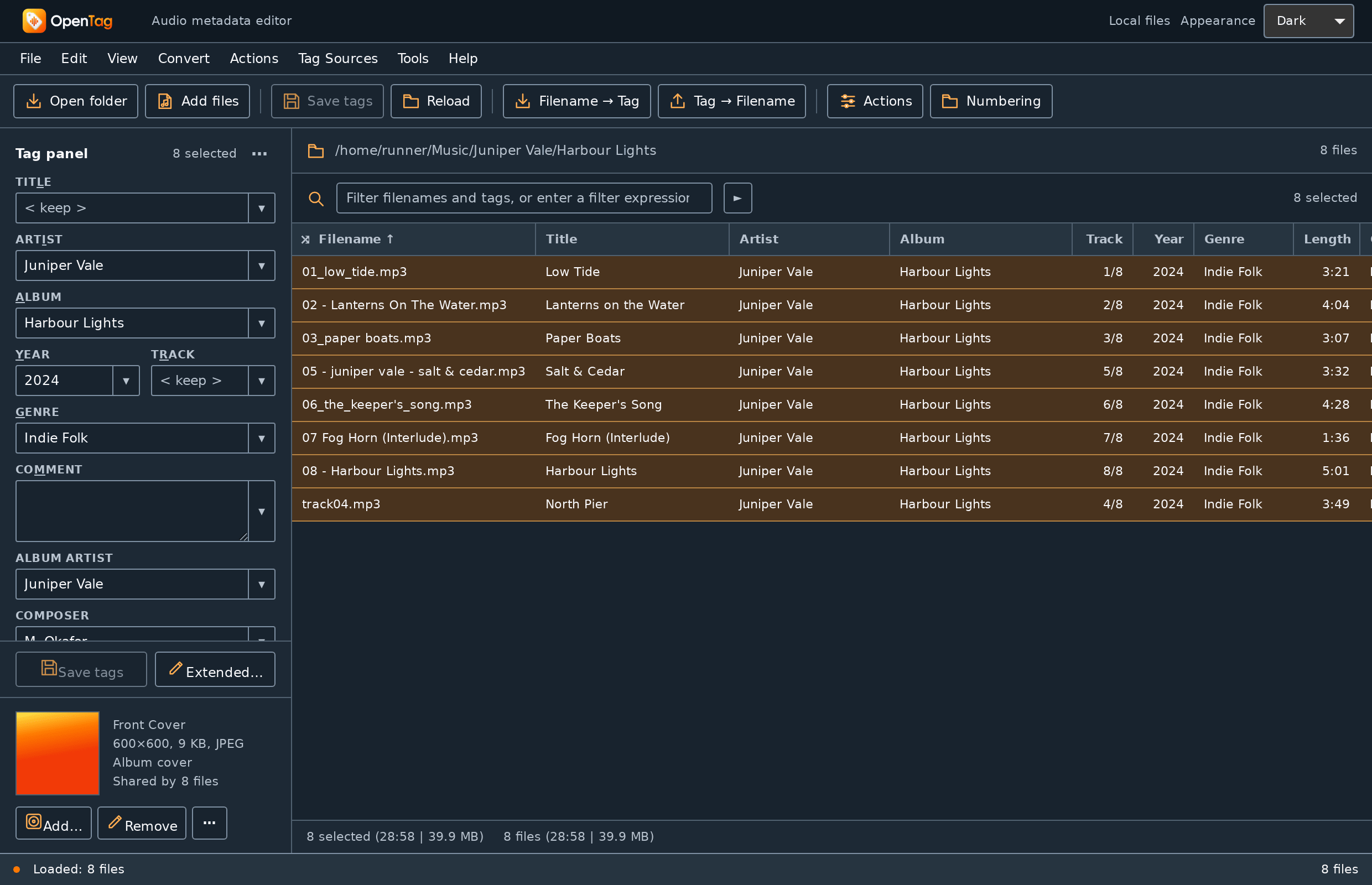
The screenshot illustrates the keep-existing-values state. Layout and visible controls depend on the saved panel configuration.
Set one album for several tracks
- Select two copied tracks with different titles,
Paper BoatsandNorth Pier. - Check that the panel's selected-file count is 2. Leave Title unchanged.
- Enter
Harbour Lightsin Album. - Inspect the list: both rows show the album, while their titles stay distinct.
- Choose File → Save tags (Cmd+S / Ctrl+S), then check any errors.
Typing one value into a field applies that edit to every selected file. Leaving a mixed field alone preserves each file's own values; it does not copy the first track's title into the others.
Read the mixed-value state
A shared value is displayed normally. When selected files differ, a text
control is empty with the < keep > placeholder. That placeholder describes
an instruction to keep existing values; it is not a missing-title diagnosis
for the whole selection.
Use the field's ▾ button to choose a value. A multi-file selection includes
< keep >; < blank > requests clearing the field. The list also includes
distinct values from the selection, configured custom values and, for Genre,
standard genres unless disabled in Field Values options.
| Choice or typed text | Resulting value list |
|---|---|
Choose < keep > |
Keep each file's loaded values |
Choose < blank > |
Field removed |
Type Juniper Vale \\ Mira Solberg |
Two values: Juniper Vale, Mira Solberg |
Type AC\DC |
One value: AC\DC |
Type %artist% |
One value: %artist% |
Choose the actual dropdown entry for Keep or Blank; typing its displayed label is not the same dropdown action. Choosing Keep also abandons a pending edit to that field and restores each selected file's loaded values. It does not clear unrelated pending fields.
Two consecutive backslashes separate values in panel input. The pieces are trimmed; a single backslash is ordinary text. Avoid repeated/trailing separators: this panel parser can retain empty pieces. It differs from Format Value, whose delimited metadata output drops empty pieces. Use Extended tags to inspect and edit the individual stored values directly.
Choose and remember suggestions
Suggestions help keep spelling consistent; they do not restrict a field to the list. Type a new artist, genre or composer normally when needed. Options → General → Auto-completion at selection boxes enables inline completion from the field's available values. Check the completed spelling before saving, especially when names share a prefix.
For text controls, the arrow keys open and move through the dropdown; Enter accepts its active entry and Esc closes it. In a multiline control, ordinary Up/Down move the text cursor; use Alt+Up/Down to open its value list. With a value list open, Alt+Home/End selects its first/last entry. Tab closes the popup while moving focus.
With the value list closed, Shift+Enter adds the current trimmed, nonempty single-line text to that field's custom values. This saves a suggestion, not the audio file. To edit, import or export the suggested lists, use View → Field values…; see Field Values options. A multiline value is not accepted as one custom-list entry.
Work with checkboxes, multiline fields and defaults
A configured checkbox can show checked, unchecked or mixed. Changing it writes
1 or a removal request as a pending edit for the selection. An existing value
such as false, no or 0 is treated as off. See
panel customization before using a checkbox for a
field whose existing spelling matters.
Multiline controls accept line breaks, useful for comments and lyrics. The same two-backslash value separator still applies. A line break alone does not turn one text value into several field values.
Most defaults are < keep >. A configured visible field with another default
can automatically stage that default when several files are selected, as long
as that field has no pending edit in the selection. Review Default value
under Customize tag panel… if selecting a batch unexpectedly creates pending
changes. View → Default values in input fields explicitly stages configured
visible defaults, including replacements for existing pending values.
Defaults are literal text, not evaluated format strings.
Show, arrange and navigate the panel
View → Show tag panel / Hide tag panel toggles the whole panel. The shortcut is Ctrl+Q, including on macOS where it means Control, not ⌘. The panel's ⋯ menu or a right-click on empty panel space exposes field visibility, Display cover art, customization and configuration commands. Hiding a control or the panel does not remove its metadata.
The position menu supports left, right, top, bottom or floating layouts; resize the dock or floating panel to make the fields usable. Compact layouts can use pane tabs instead of the wide desktop arrangement. Customize fields and their order through Customize tag panel.
An underlined label identifies its configured Alt mnemonic. Alt is ⌥ Option on macOS; while typing there, use Control+Option+letter so an ordinary Option character remains text. Text fields keep their usual text-edit menu when right-clicked.
Directory is a navigation control, not a tag field or a folder-renaming command. Choosing a loaded folder selects its visible files. Typing another folder and pressing Enter, or choosing Open folder…, loads a folder and can replace the list. Resolve pending edits when asked. For renaming from metadata, use Tag → Filename.
Inspect the cover separately
The cover area can show embedded artwork, pending pasted artwork or a folder image fallback. A folder image is not embedded merely because it is visible. Use Working with covers to distinguish these states and choose add, remove, manage or extract operations. Their write timing is separate from typing a panel value.
Gotchas
- Check selection count before a shared edit; an active filter does not prove that hidden rows are unselected.
- Changing a read/write tag policy can affect saved storage beyond the one field changed. Read Tags options.
- A field's visible label can differ from its actual identifier. Use
Extended tags… when checking
ALBUMARTISTversusARTIST, or custom names. - Provider sources can allow editing but require Save a copy… to retain changes. Read the access message and keep copy/artwork limitations in mind.